2 Installation Guide
2.1 JATOS Local Installation Guide
This guide walks you through installing JATOS (Just Another Tool for Online Studies) locally so you can develop and test your study before uploading it to the ManyLanguages Platform.
JATOS is a lightweight, browser-based experiment server that runs on Java and supports HTML/JavaScript-based studies.
2.1.1 System Requirements
Before installing JATOS, ensure you have:
- Java 11 or newer
- Windows, macOS, or Linux
- A modern browser (Chrome, Firefox, Edge)
To check your Java version by typing in a terminal or command prompt: java -version
If Java is not installed, download it from: https://adoptium.net/. You can also download a version of JATOS that includes Java bundled with the software.
2.1.2 Step 1: Download JATOS
- Go to the official JATOS website: https://www.jatos.org/
- Click Download
- Download the latest stable release (ZIP archive).
You will get a file like: jatos-3.x.x.zip
2.1.3 Step 2: Unzip JATOS
Unzip the downloaded file to a location on your computer.
Example:
- macOS/Linux: /Users/yourname/jatos/
- Windows: C:
Inside the folder you should see:
start.sh
start.bat
conf/
study_assets/
2.1.4 Step 3: Start JATOS Locally
Navigate into the unzipped folder.
2.1.5 macOS / Linux Terminal:
cd jatos-3.x.x bash loader.sh start
2.1.6 Windows:
Double-click: loader.bat
Or run in Command Prompt: loader.bat start
2.1.7 Step 4: Open JATOS in Your Browser
After starting, open: http://localhost:9000
You should see the JATOS login screen.
2.1.8 Step 5: First-Time Login
The default credentials are:
- Username: admin
- Password: admin
2.1.9 Step 6: Create a Study
Once logged in:
- Click Add Study
- Assign components (or upload a precompiled
.jzip). - Upload files into the folders that are created when you click add study.
- Run pilot tests locally - the study will now run entirely on your machine.
When you add a component to a study, you need to say where your html file is located. You’ll see a screen like this:
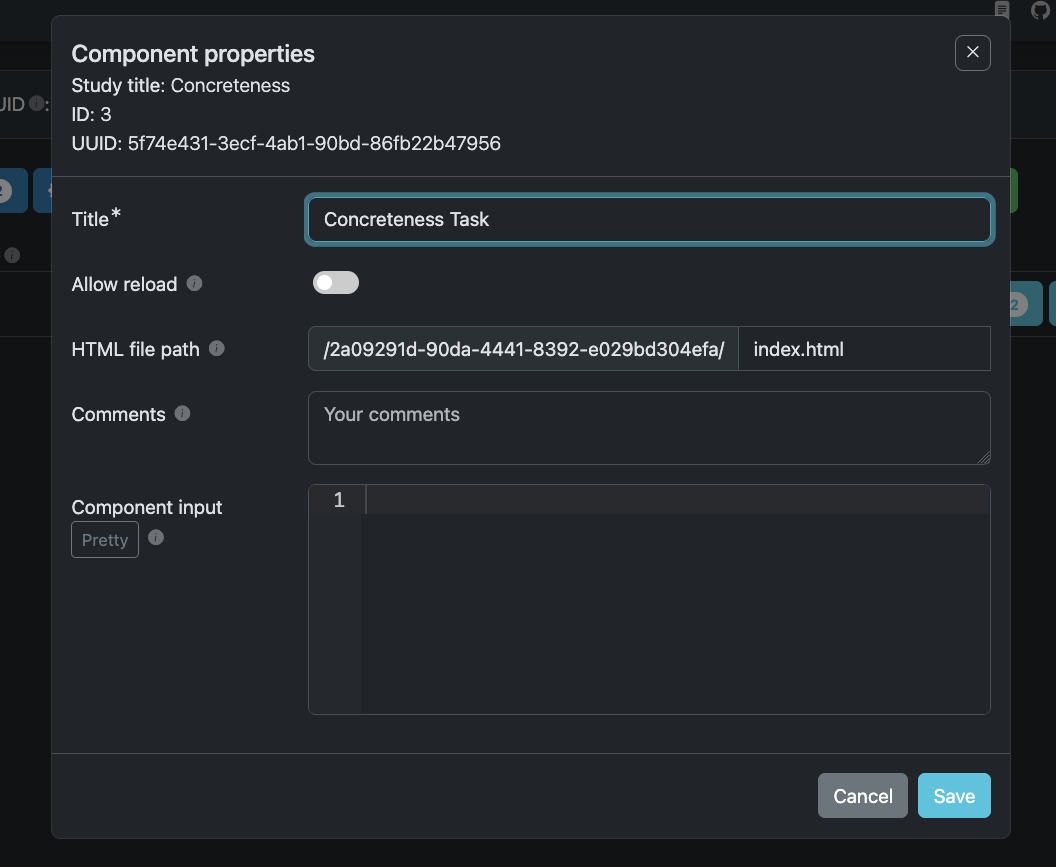
You will find this folder under /study_assets_root in the same folder as the JATOS unzipped installation.
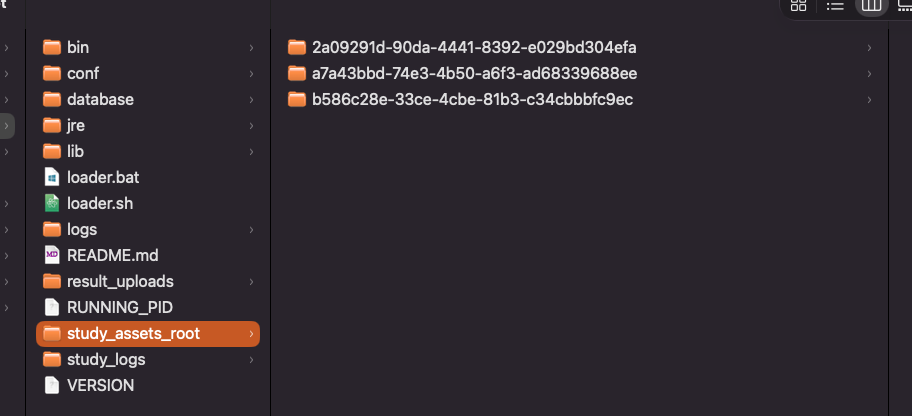
Put any necessary files in the folder that matches HTML path in your component settings.
When you are done testing:
- Click export.
- Upload the
.jzipfile on the platform when prompted.
It will help if you test this process on your own computer, as you would need to run pilot tests on our platform multiple times if there are issues with the study.
2.1.10 Stopping JATOS
To stop the server:
- Return to a terminal/command window
- Type in
bash loader.sh stopfor macOS/Linux andloader.bat stopon Windows.
2.1.11 Optional: Change Port Number
If port 9000 is in use:
- Open: conf/application.conf
- Find: play.server.http.port = 9000
- Change to another port (e.g., 9001)
- Restart JATOS
Then access: http://localhost:9001
2.1.12 Best Practices Before Uploading to ManyLanguages
Before uploading your study to the platform:
- Test all components locally
- Verify data output format
- Confirm multilingual rendering works correctly
- Ensure participant feedback logic executes correctly
2.1.13 Additional Resources
Official documentation:
https://www.jatos.org/Documentation.html